


.png)
Microsoft Edge Intune
Deployment Guide
Microsoft Edge Intune Deployment

Microsoft Edge Intune Deployment
The following steps walk through force-installing the Ripple extension for users and enrolled browsers in your Google Workspace environment. The process takes approximately five to ten minutes for an experienced administrator.
Note
Anthropic recommends testing the deployment on a small pilot OU first before rolling out to your entire organization. This allows you to verify the policy is applied correctly without disrupting all users
Step-by-step instructions
Step 1
Sign in to the https://intune.microsoft.com/
Step 2
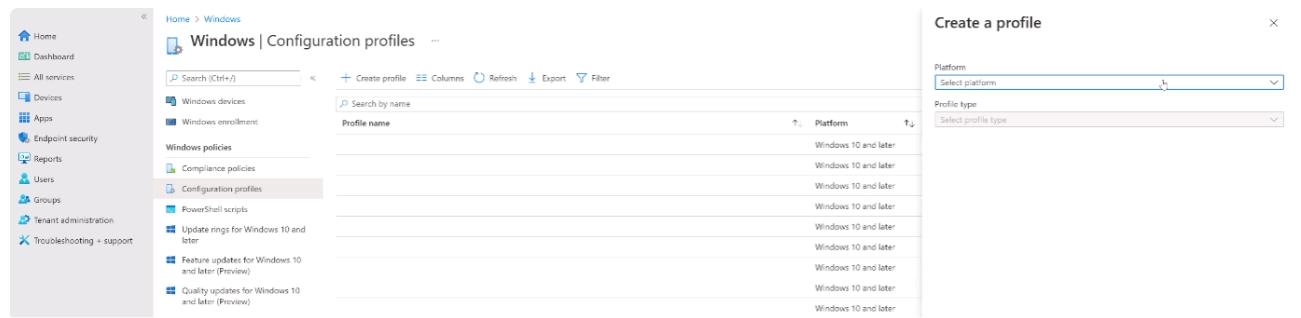
Select Devices > Windows > Configuration profiles > Create> New policy
Step 3
Select ‘Platform’, ‘Windows 10 and later’, and then select ‘Settings catalog’. Click on the Create button.
Step 4
On the Basics tab, enter a descriptive name, such as Edge Ripple Extensions, then select Next.
Step 5
In Configuration settings, select Add settings.
Step 6
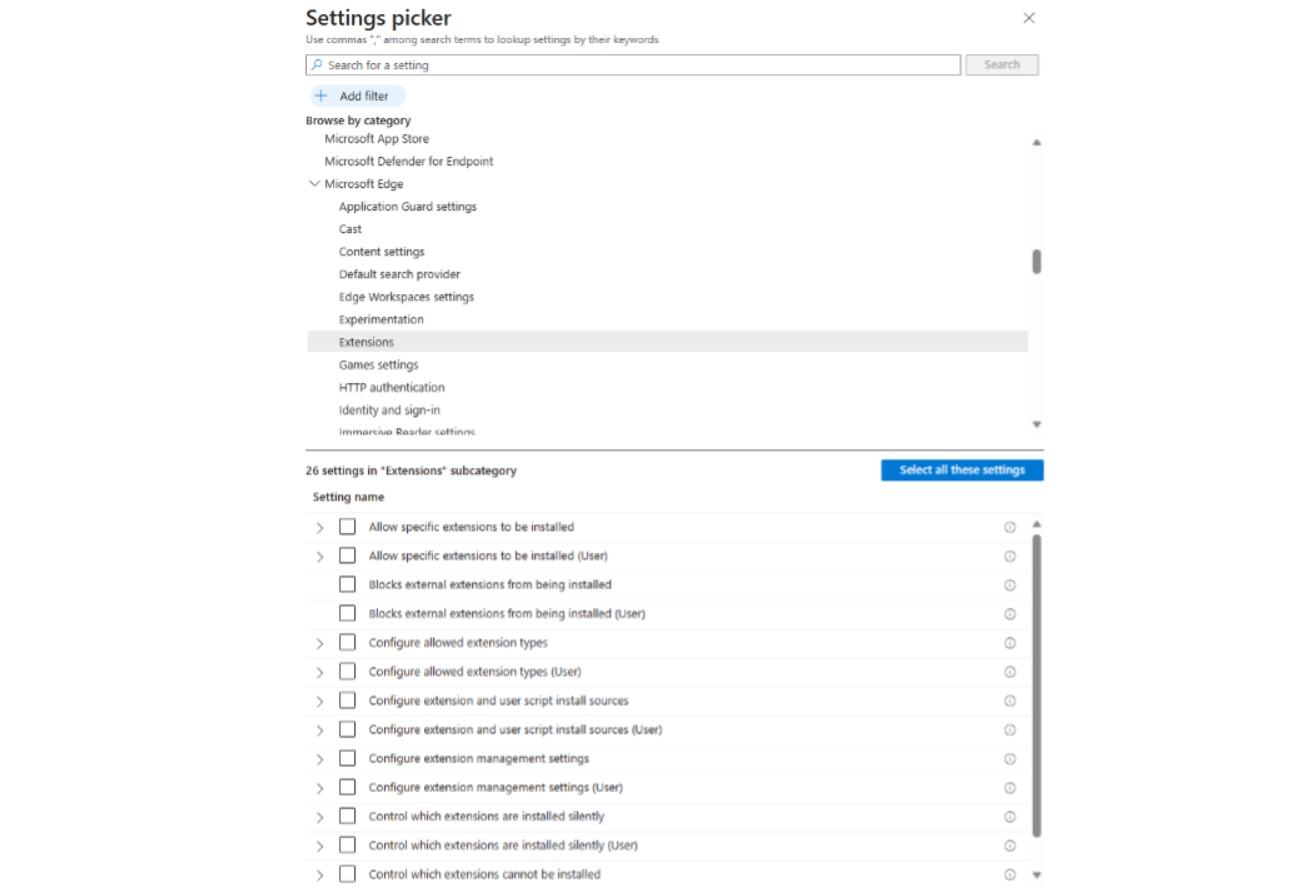
Select Extensions Under ‘Microsoft Edge’, to see all the settings in this category.

Step 7
Select ‘Control which extensions are installed Silently’.
Step 8
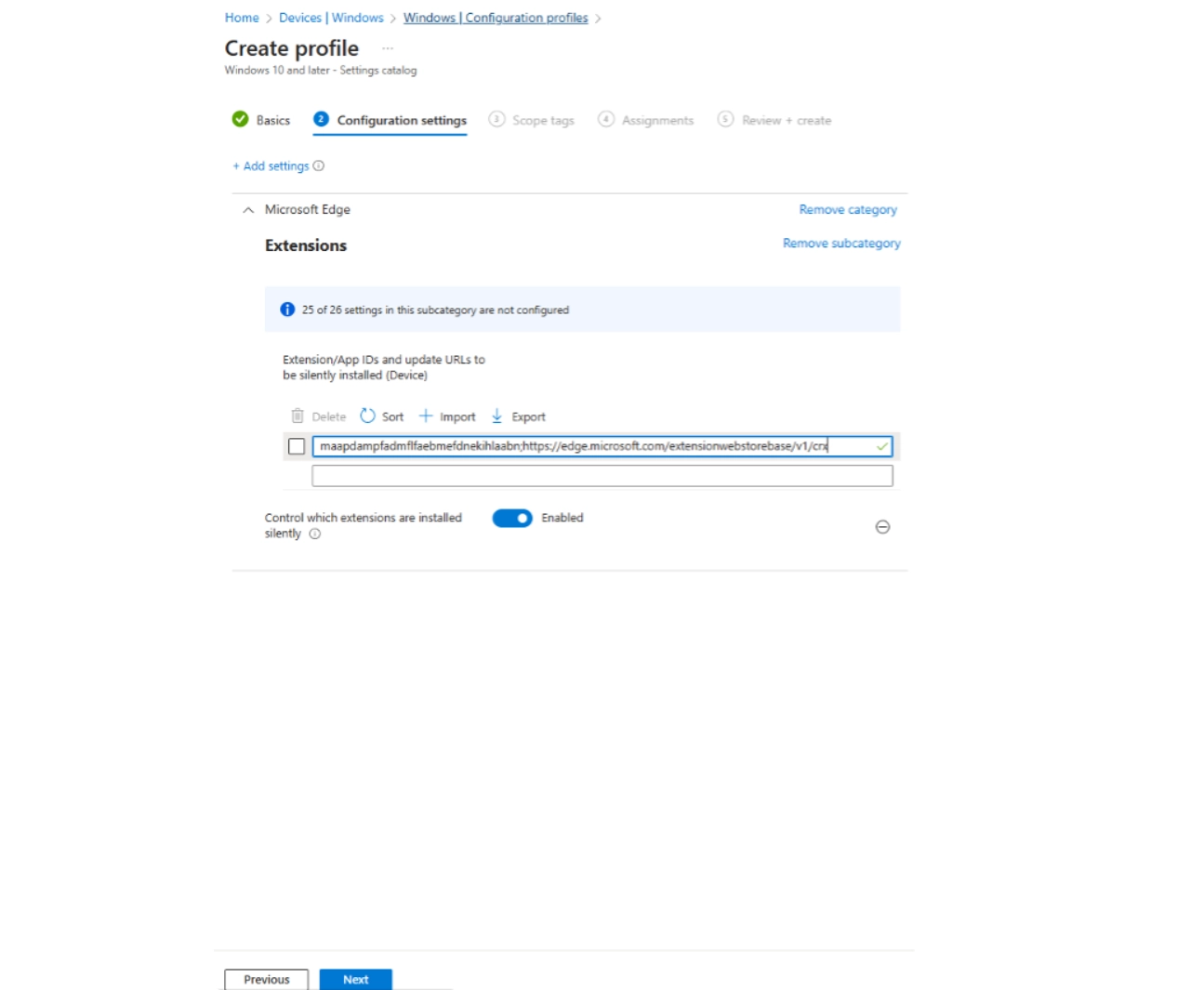
Enable control which extensions are enabled and enter the following:
maapdampfadmflfaebmefdnekihlaabn;https://edge.microsoft.com/extensionwebstorebase/v1/crx
Step 9
Set Scope and assignments as per your organizational specific requirements..
When the configuration profile is complete, it will take time for the extension to push out for the users. It will depend on the sync frequency between the Windows device and InTune. If you have a testing device handy, you can find the device and force the sync.